EPGenius Playlist Setup Guide
Complete step-by-step tutorial for setting up your curated playlist
Getting Started
Follow this comprehensive guide to set up a new, curated EPGenius playlist via epgenius.org
Setup Instructions
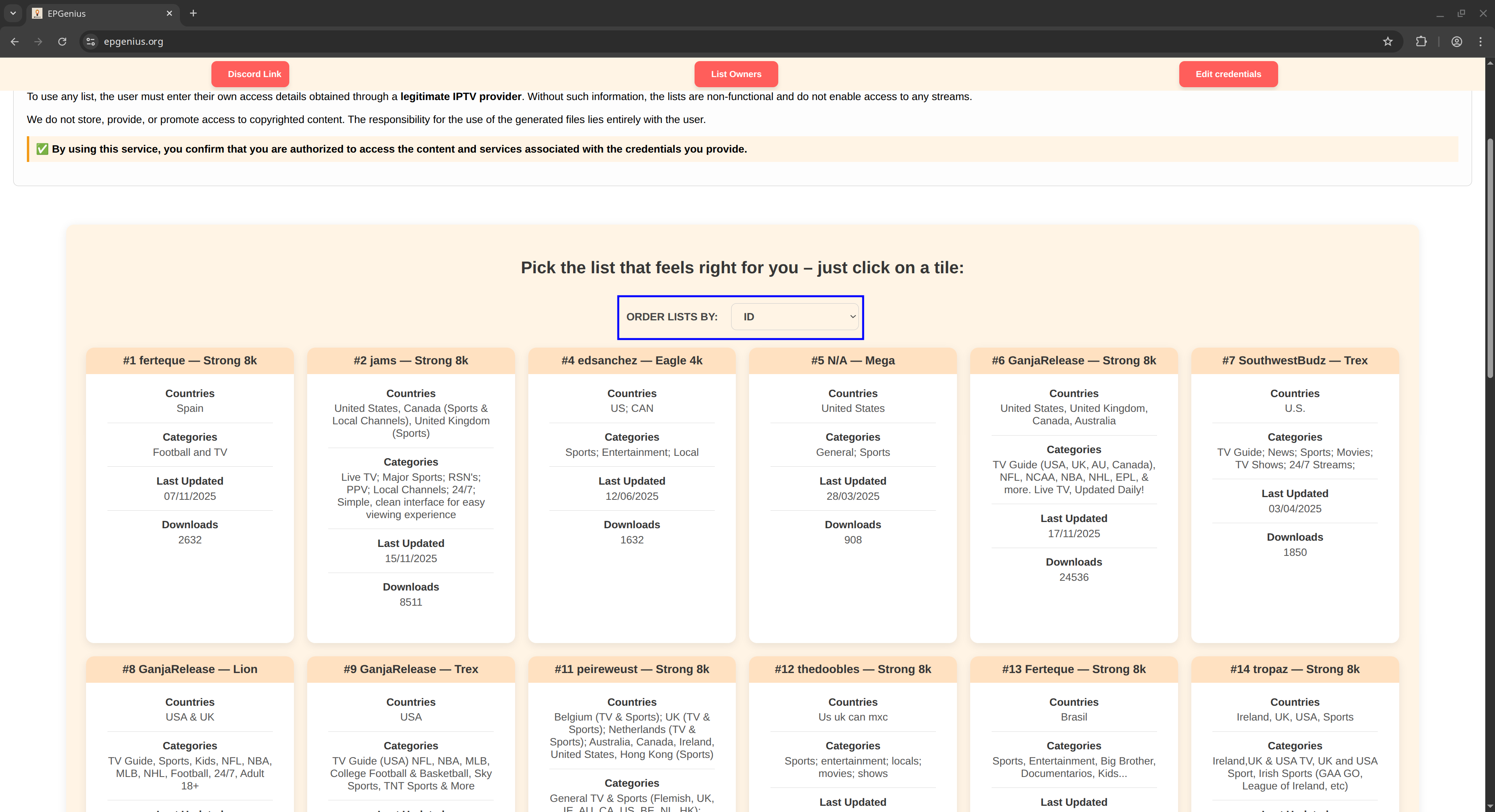
Choose Your Playlist
Start by browsing the available playlists at epgenius.org. If you're new to this, we recommend sorting by service to find a playlist matching your current service.
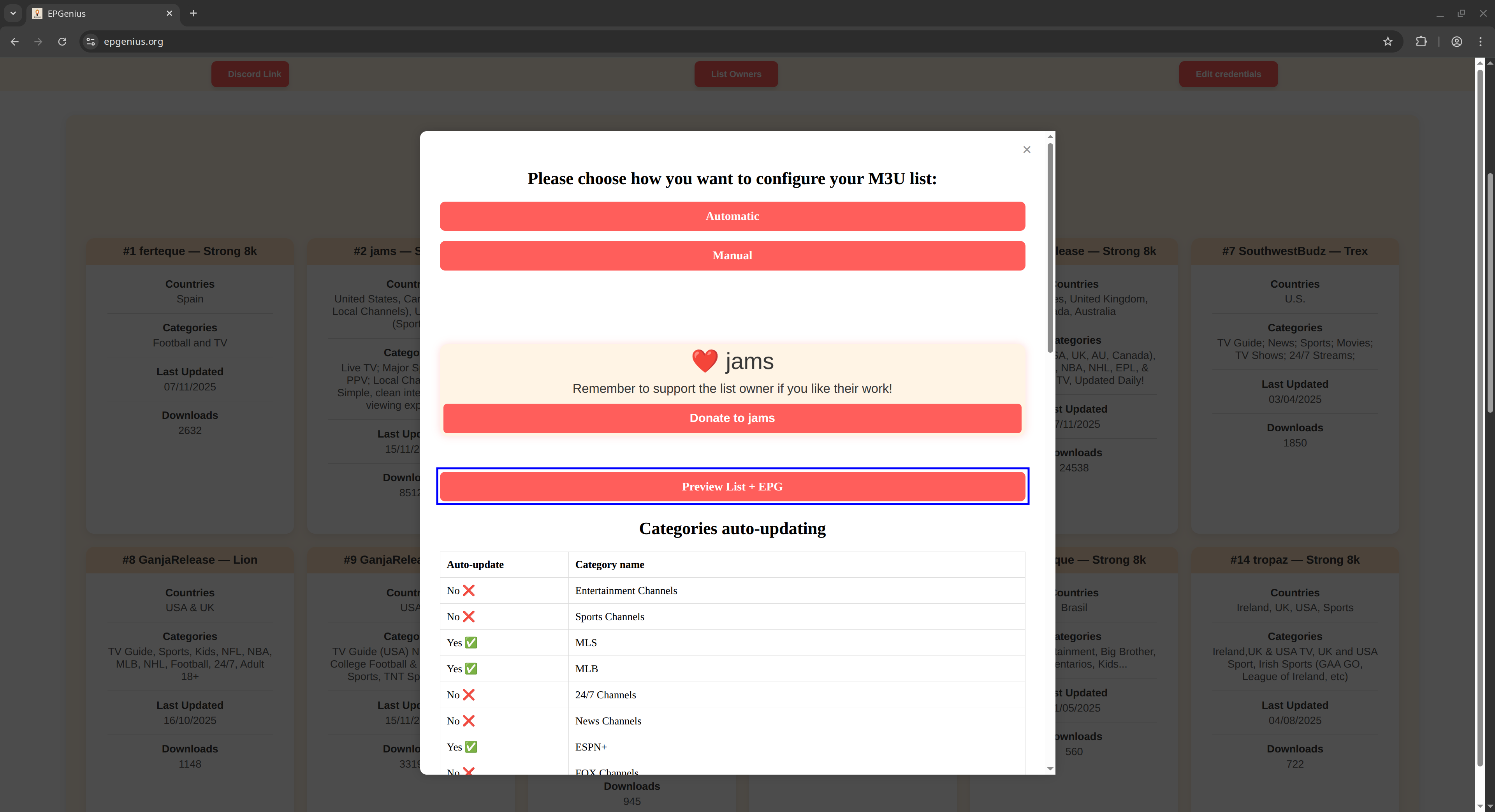
Select Configuration Method
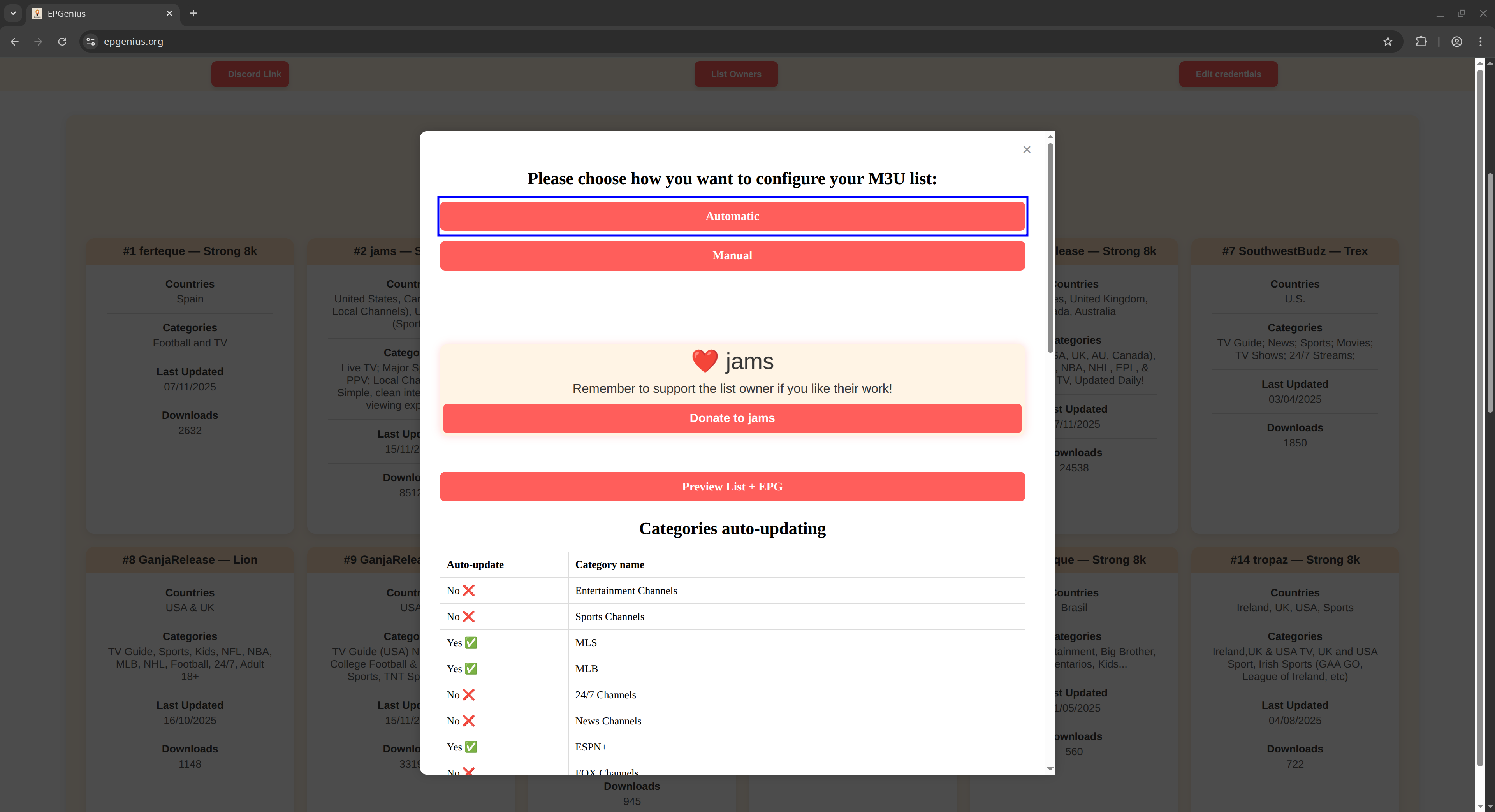
When prompted, click "Automatic" to begin the setup process.
Enter Your Credentials
Choose the option that matches what your seller gave you:
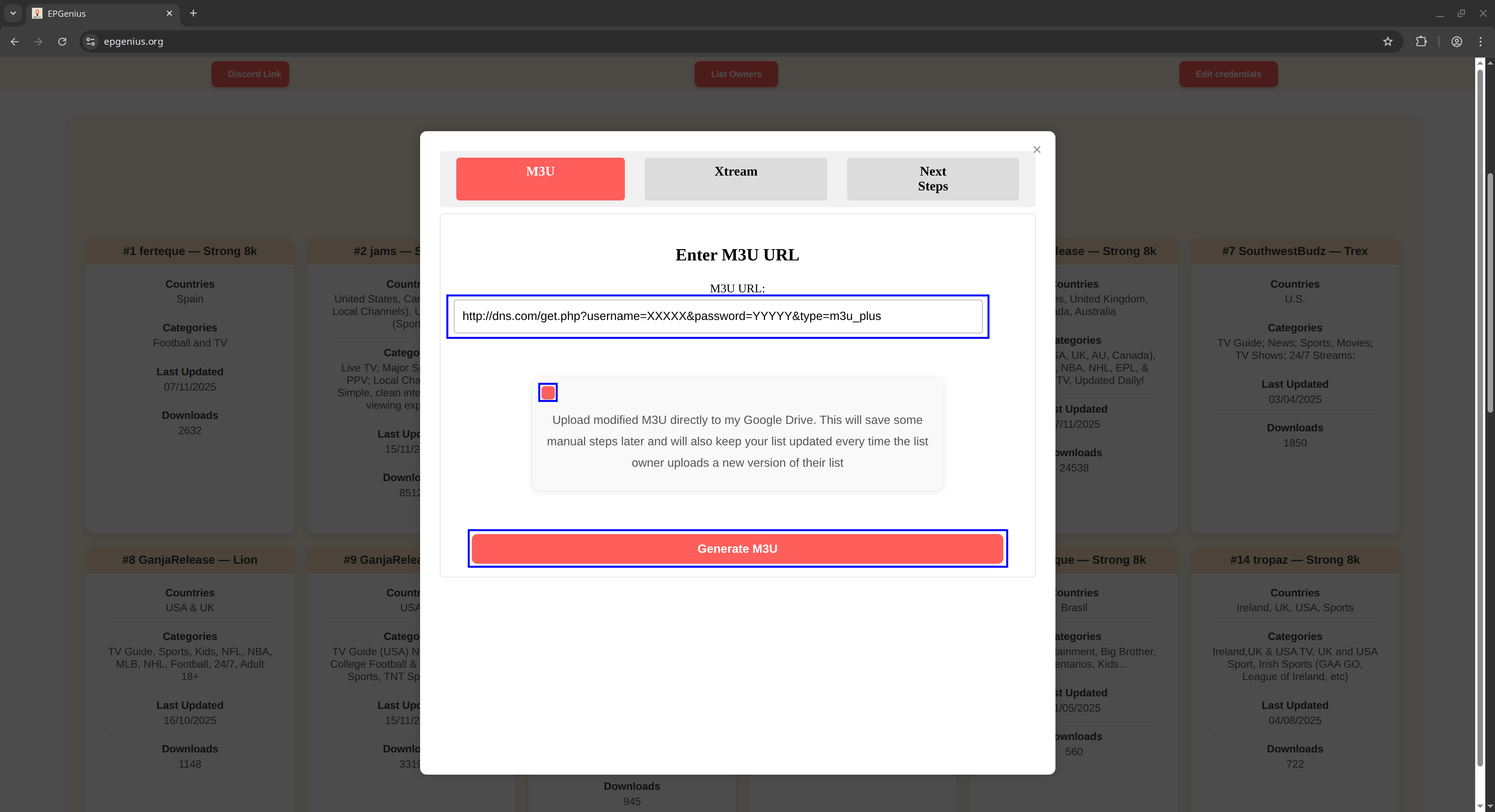
Option A: M3U
If you were provided an M3U link:
- Enter your M3U link
- Check the box to upload to Google Drive
- Click "Generate M3U"
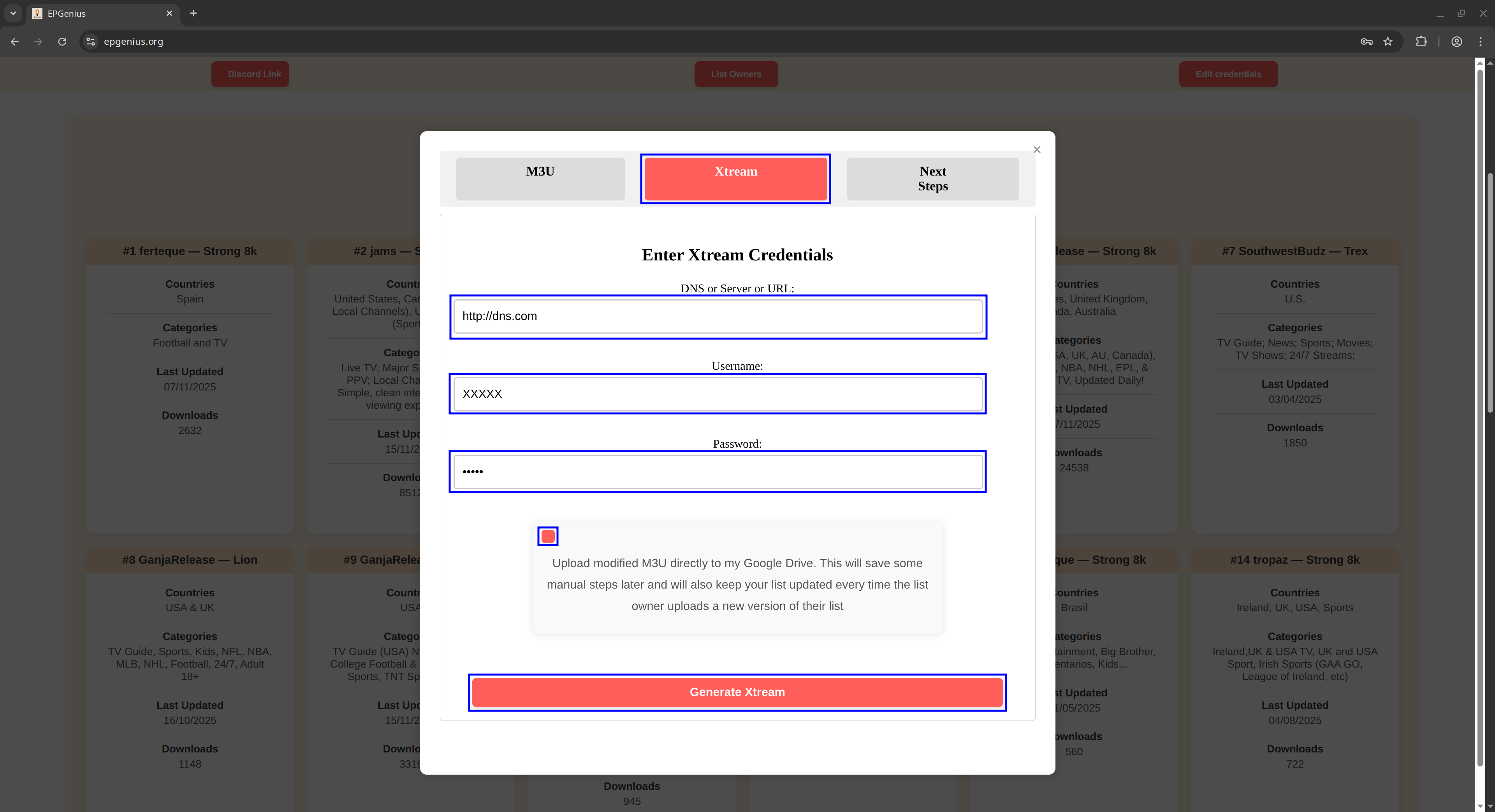
Option B: Xtream
If you were provided Xtream credentials:
- Enter DNS/Server link
- Enter Username
- Enter Password
- Check the box to upload to Google Drive
- Click "Generate Xtream"
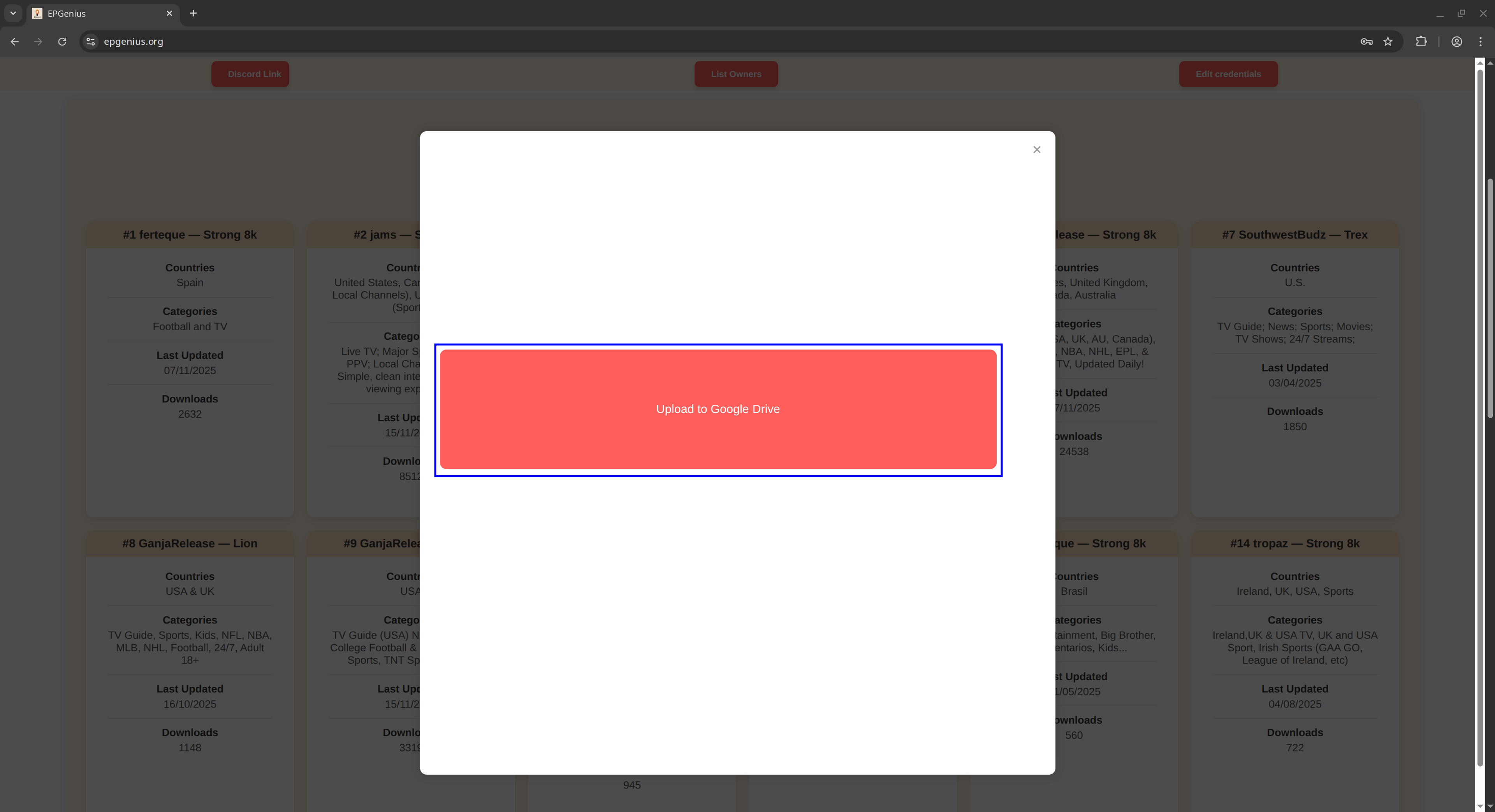
Upload to Google Drive
Click the "Upload to Google Drive" button.
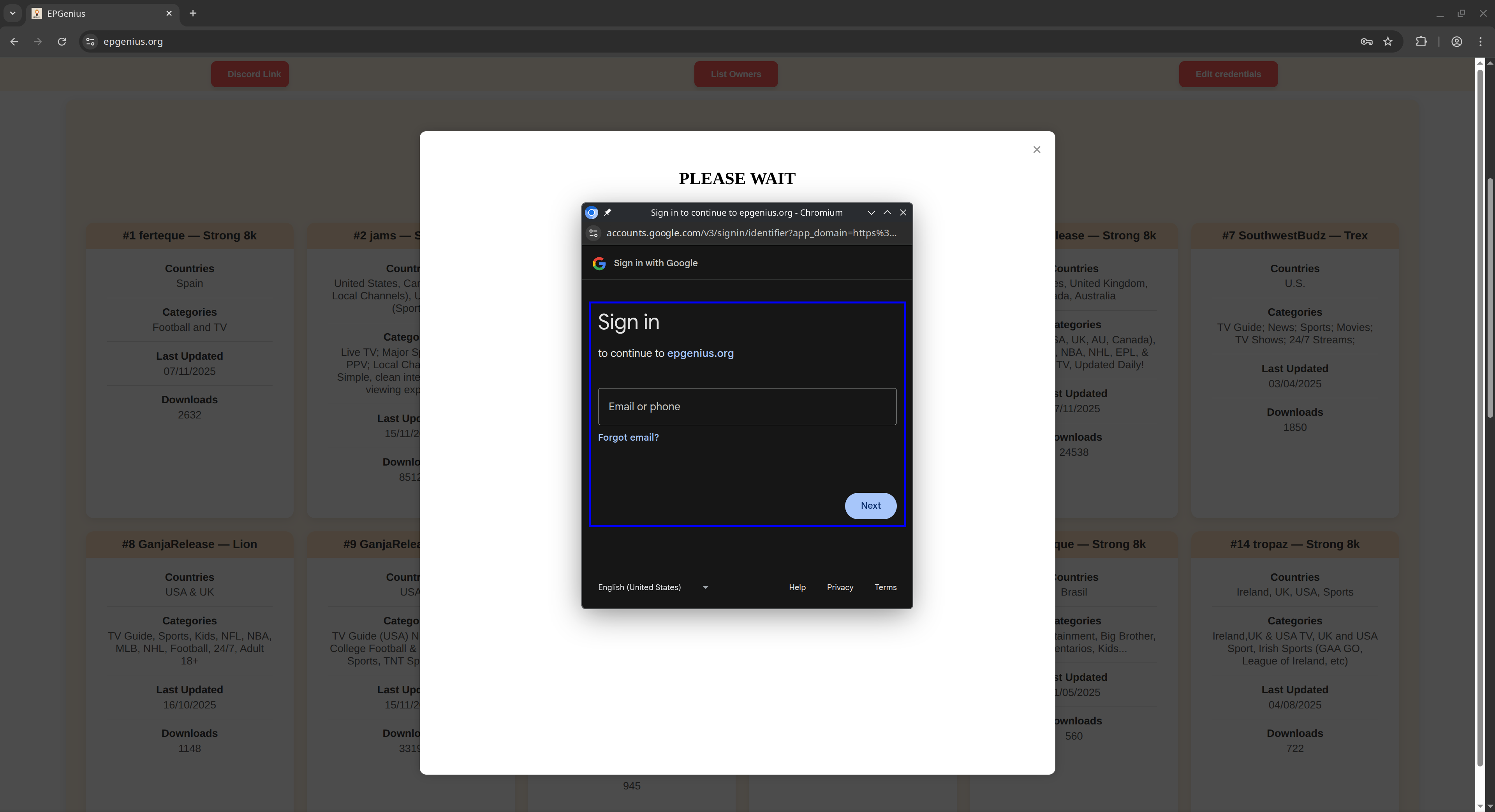
Sign In to Google
Log into your Google Account when prompted. This allows EPGenius to save your customized playlist to your personal Google Drive so that you automatically receive new playlist updates.
Copy Your Links
You'll now see two important links:
- Drive URL - Your new M3U playlist link
- EPG URL - Your EPG link
Use these links when adding a new playlist to the player of your choice.
Recommended apps for entering links:
- Android/Google TV: Use the Google TV app
- Amazon Fire TV: Use the Fire TV app
- Apple TV: Use the built-in iOS Apple Remote
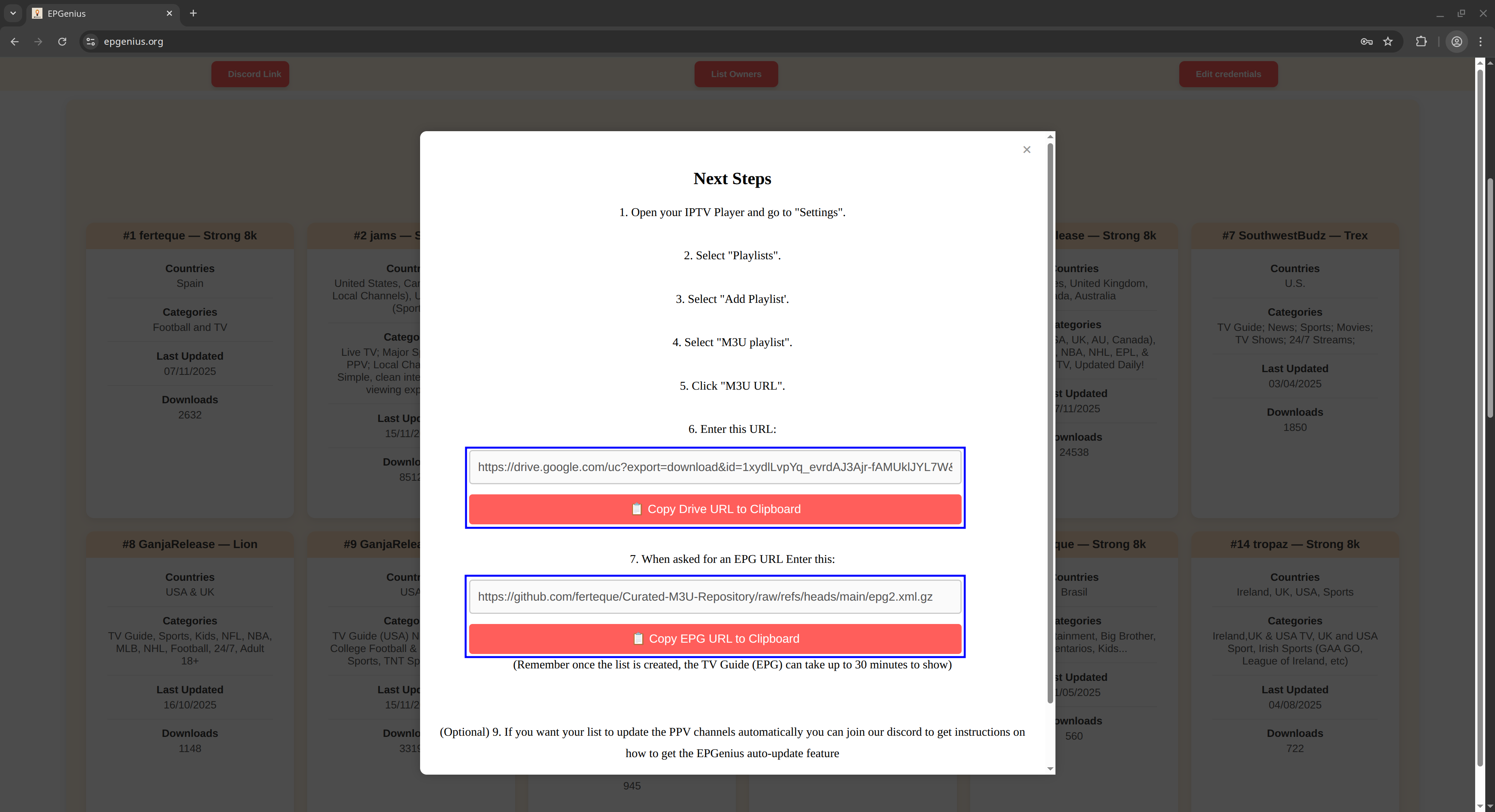
However, to take advantage of EPGenius's best feature, automatic playlist updates, you must follow the steps below to register your playlist!
Join the Discord Community
We highly encourage joining the EPGenius Discord server for:
- Automatic updates via playlist registration (step 8)
- Access to FAQs and troubleshooting guides
- Direct support from the community and playlist owners
- Ability to provide feedback to improve playlists
- Playlist recovery (retrieve your links anytime)
Register Your Playlist
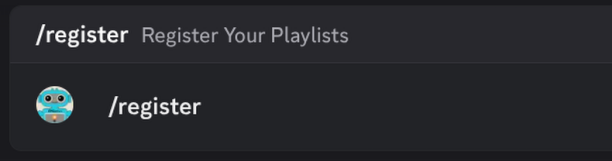
Once you've joined the Discord, head over to the channel # 🚑〢help to register your playlist by sending the message below and entering your Drive URL from step 6.
/register
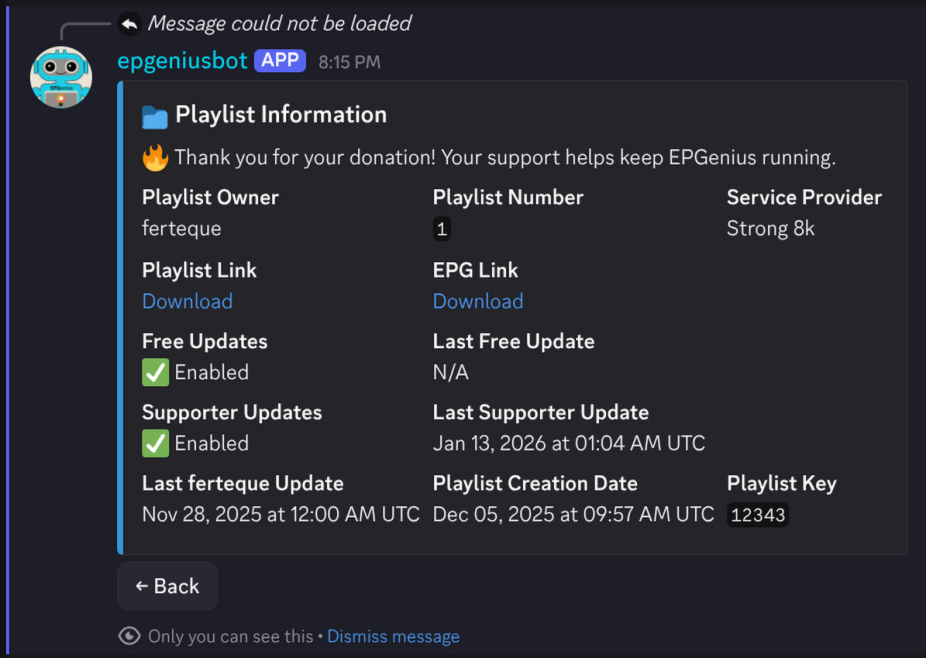
Once that's done, you can run the command
/info in any channel in the EPGenius Discord to:
- Retrieve your playlist and EPG links
- Unregister old playlists
- Access helpful playlist information, like your playlist statuses, latest updates, and more!

Next Steps
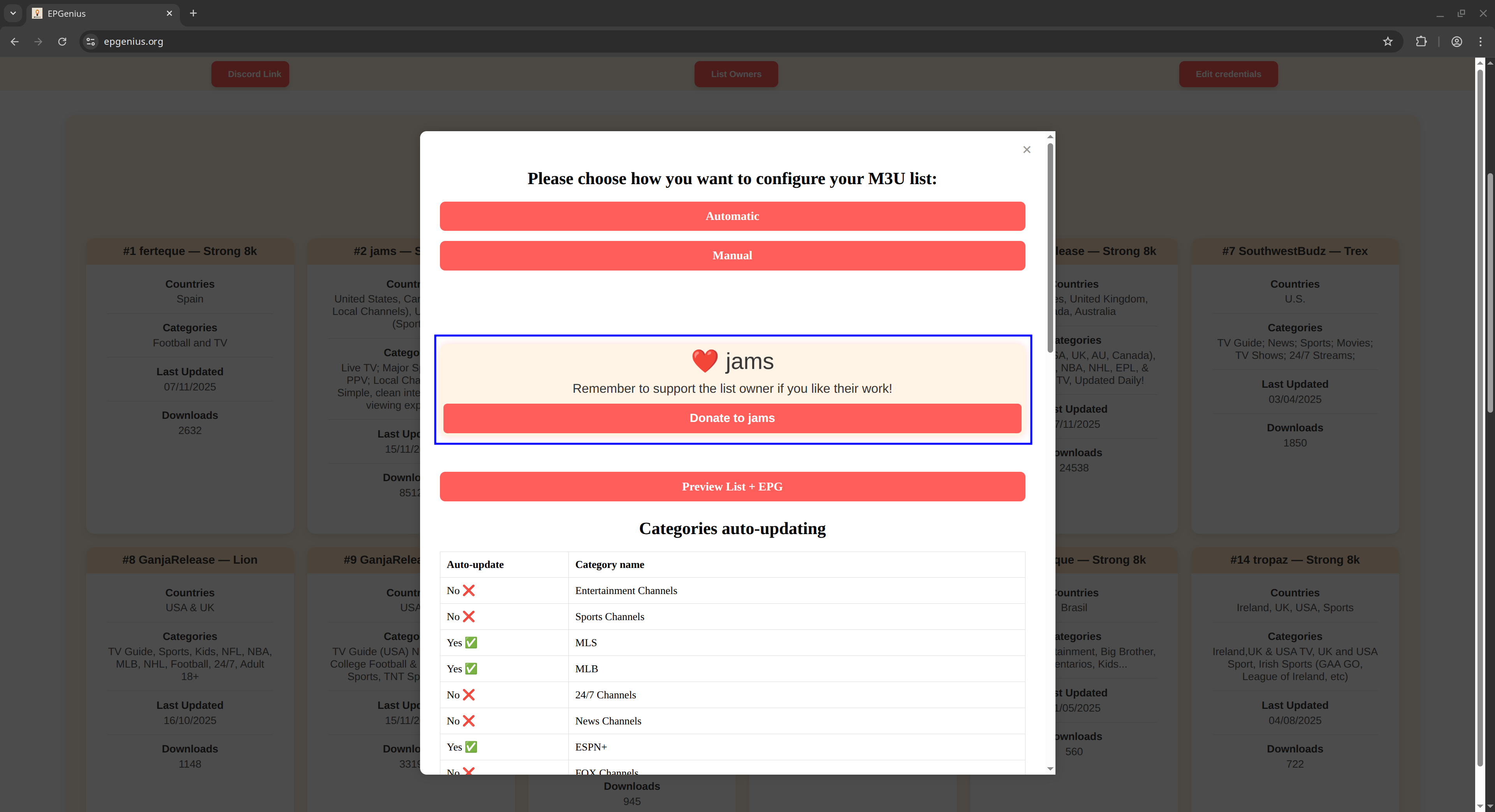
Consider Supporting the Playlist Creator
If you're loving your playlist, consider donating to the playlist creator. Benefits include:
- 100% of donations go directly to the creator
- Priority free updates
- Supporter Updates: Keep your TV guide synced with live events, sports, and PPV
Frequently Asked Questions
❓ What if my playlist isn't working?
Check these common issues:
- Verify the the playlist link was copied exactly
- Ensure your credentials are active and valid
- Make sure you were sold the correct service. Some sellers advertise one service, but provide credentials for a completely different one
- Join the Discord server for more troubleshooting steps and help
❓ Can I use multiple playlists?
Yes! You can set up multiple playlists. Just remember, you can only view as many connections as your credentials allow.
❓ How often do playlists update?
Free updates happen as often as the playlist owners makes updates. Supporter updates happen every 4 hours to keep your playlist and EPG in sync with live events, sports, and PPV.